Nozzle
Near enough the width of one printed line. Walls are made a whole number of these.
File tab
A printer profile holds the numbers the tools start from: the nozzle, the layer height and five fits. Keep one for each printer and filament — PLA and PETG want different fits — and the Library, Hole, the connectors, brick studs, Mold’s keys and Keyhole all start from it.
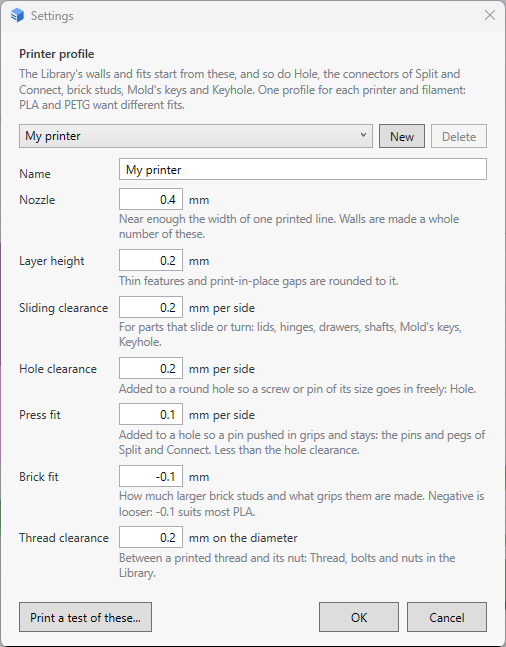
Near enough the width of one printed line. Walls are made a whole number of these.
Thin features and print-in-place gaps are rounded to it.
For parts that slide or turn: lids, hinges, drawers, shafts, Mold’s keys, Keyhole.
Added to a round hole so a screw or pin of its size goes in freely: Hole.
Added to a hole so a pin pushed in grips and stays: the pins and pegs of Split and Connect. Less than the hole clearance.
How much larger brick studs and what grips them are made. Negative is looser: −0.1 suits most PLA.
Between a printed thread and its nut: Thread, and the bolts and nuts in the Library.
More tool guides: Cladding · 3D textures · Windows · Doors · Mold · Voronoi · Connectors · Align to face · Fill up · Pivot · Kit sprue · Repair and Rebuild · Emboss · History and versions · Download 3DFastCraft, free