3DFastCraft Download

Tool · Tools tab

Molds, worked
out for you

The Mold tool turns a model into a printable mold that comes apart. It works out which way the pieces separate, cuts at the widest section, keys the halves together, and drills the pour hole and the air vents. Print it, close it, and pour silicone into it.

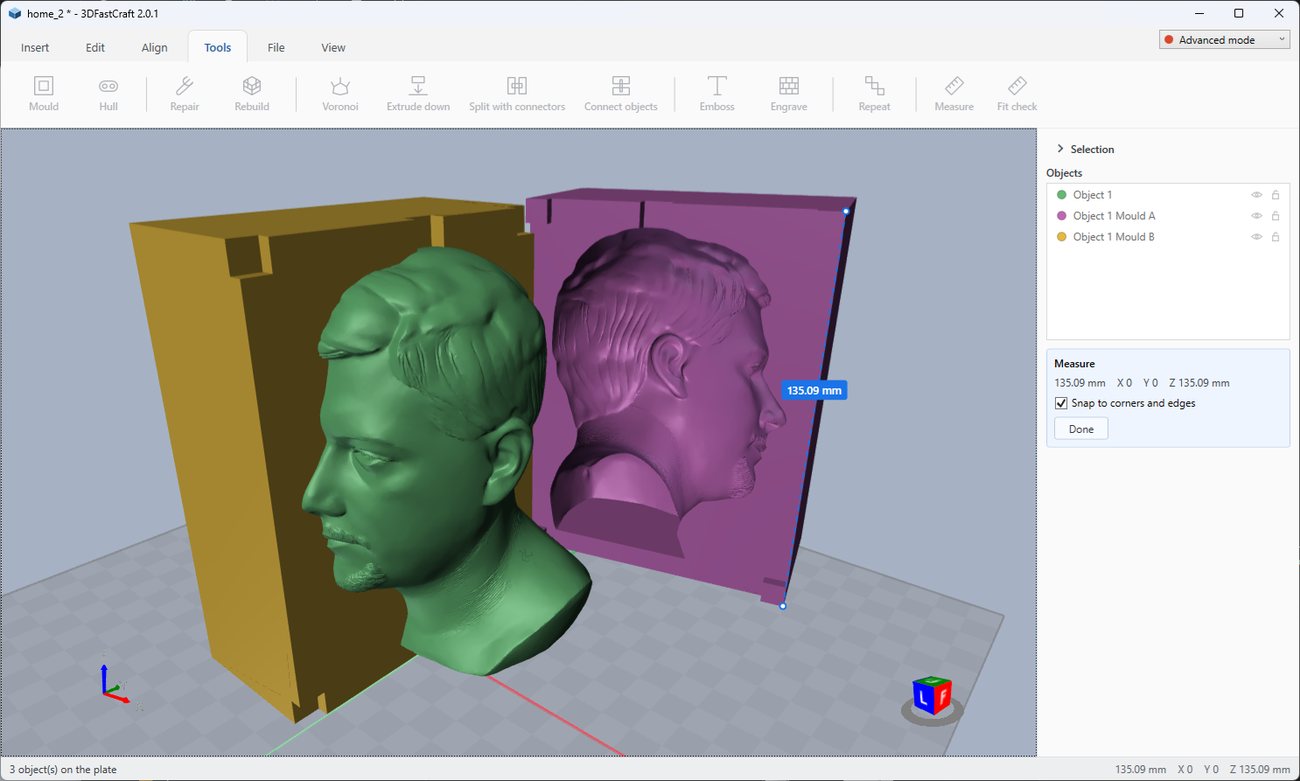
A scanned head between the two halves of the silicone mold made for it, with a measurement along one half
On the plate: a scanned head between the two halves of the mold made for it, and Measure along an edge of one half, snapped to its corners: 135.09 mm.

How to use it§ 01

  1. Select the model. One object.
  2. Click Mold on the Tools tab. The tool studies the model first, then offers what it found.
  3. Choose the number of pieces and the wall: the material between the model and the outside of the block.
  4. Set the pour hole, the air vents and the keys. The defaults are a good start.
  5. Click Make mold. The pieces appear on the plate, each its own object, ready to print.
  6. Close the pieces, pour silicone in through the pour hole, and let it set.

What it works out for you§ 02

Which way it comes apart

The tool tries each of the three axes as the direction the halves pull apart. For each one it counts the undercuts: places where the mold would sit over a surface it would have to lift off. A ring comes apart along its hole, not across it.

Where to cut

The cut goes at the widest section. That is the opening the cast part has to come out through. One cut gives two pieces, and two cuts give four.

The pour hole

Placed at the highest point of the model, so the mold fills from the bottom and the air rises. Silicone is thick and slow, so make the hole generous.

Air vents

Thin holes at every other high point, where a pocket would hold a bubble as the silicone rises. They only have to let air out. Turn them off if you do not want them.

Registration keys

A dome on one face of every joint and a socket in the other, so the pieces close one way round only. Set the key size to 0 for plain faces.

Heavy models

A scan with hundreds of thousands of triangles is too heavy to cut exactly. Detail sets how finely it is sampled for the mold instead.

The numbers§ 03

Pieces

Two, or four if the tool found a second cut worth making. The panel says what it found.

Detail

How finely the model is sampled. Used only when the model is too heavy to cut exactly.

Wall

Material between the model and the outside of the block. A thicker wall is stiffer and uses more filament.

Pour hole

Its width across. Silicone is thick and slow, so a generous hole is worth the material.

Air vents

Their width across, and a switch to add them. They are thin, since they only let air out.

Keys

The width of the registration keys across. 0 leaves the faces plain.

Clearance

Room between a key and its socket, so the halves close. 0.2 mm is the start.

Good to know§ 04

More tool guides: Cladding  ·  3D textures  ·  Windows  ·  Doors  ·  Voronoi  ·  Connectors  ·  Align to face  ·  Fill up  ·  Pivot  ·  Download 3DFastCraft, free