Flush
Least to least puts the selection’s edge level with the face’s edge.
Tool · Align tab
Align to face stands a selection against any face you click, on the axes you choose, with nothing turned or resized. Click the wall of a hole instead, round or with flat sides, and the selection goes to the middle of the hole: a pin in its bore, a window frame in its opening.
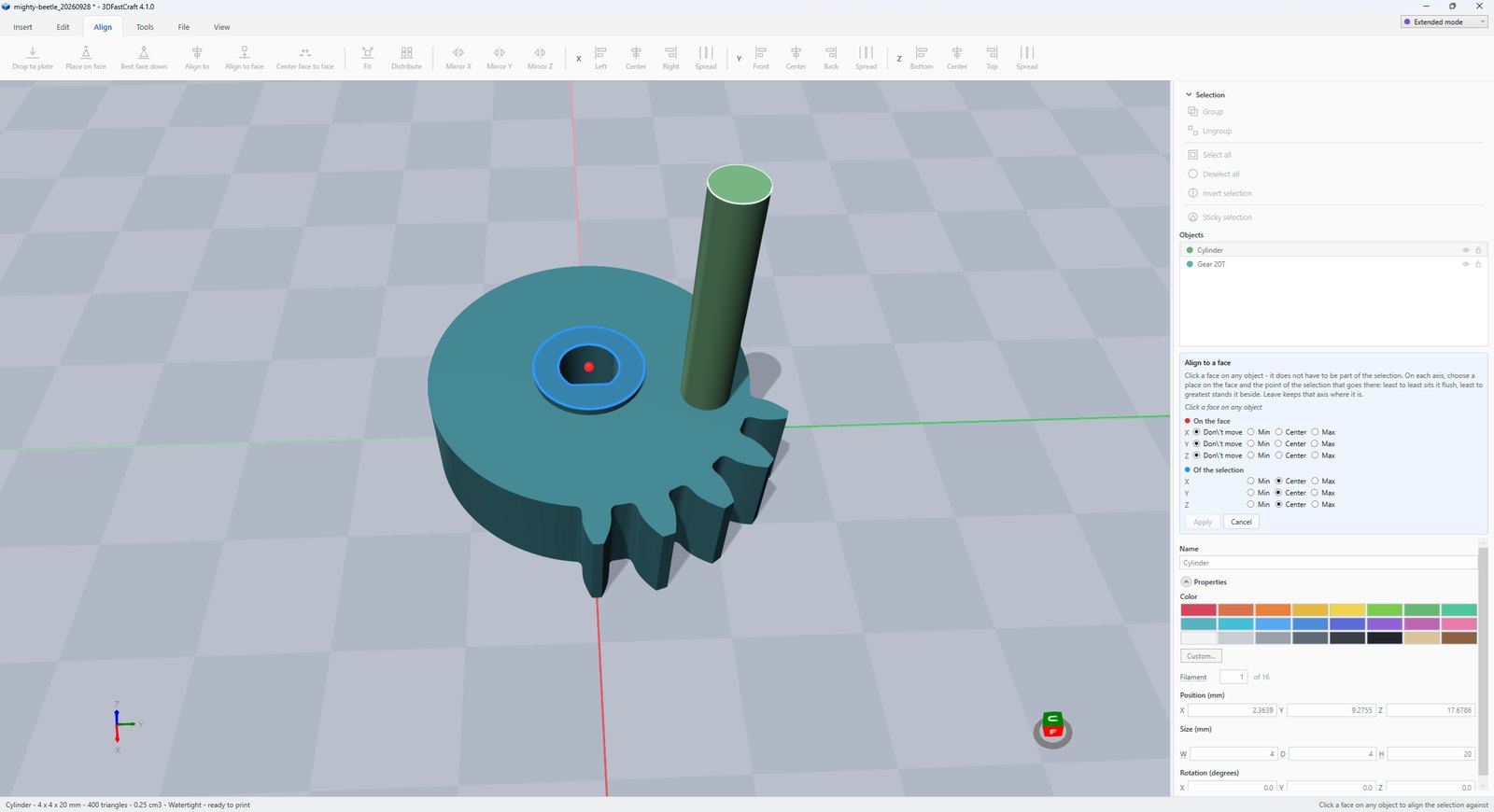
On every axis you choose where on the face (the red marker) and which point of the selection goes there (the blue one). That is what lets you do all of these:
Least to least puts the selection’s edge level with the face’s edge.
Least to greatest stands the selection next to the face, touching it.
Center to center puts the middle of the selection on the middle of the face.
Don’t move leaves that axis where it is, so you can slide a part across a face and keep its height.
A hole’s wall is taken whole, not one facet at a time. A single facet of a round hole has its middle off to one side of the hole’s own middle by about the radius. A single wall of a window opening is only one of four. So the tool gathers the whole wall of the hole and uses its middle.
Round holes and pins: the middle is the axis. Holes with flat sides: a window or door opening, a square socket, a hexagonal pocket. The tool finds the walls that close round one line, each as deep as the first, and faces them in. Their middle is the middle of the opening.
The selection is centered on the hole across its axis, and left at its own depth along it, so a window frame goes into its opening without sliding through the wall. All the walls light up, so you can see what was picked, and the panel names it: “a 12 × 8 mm opening in Wall”.
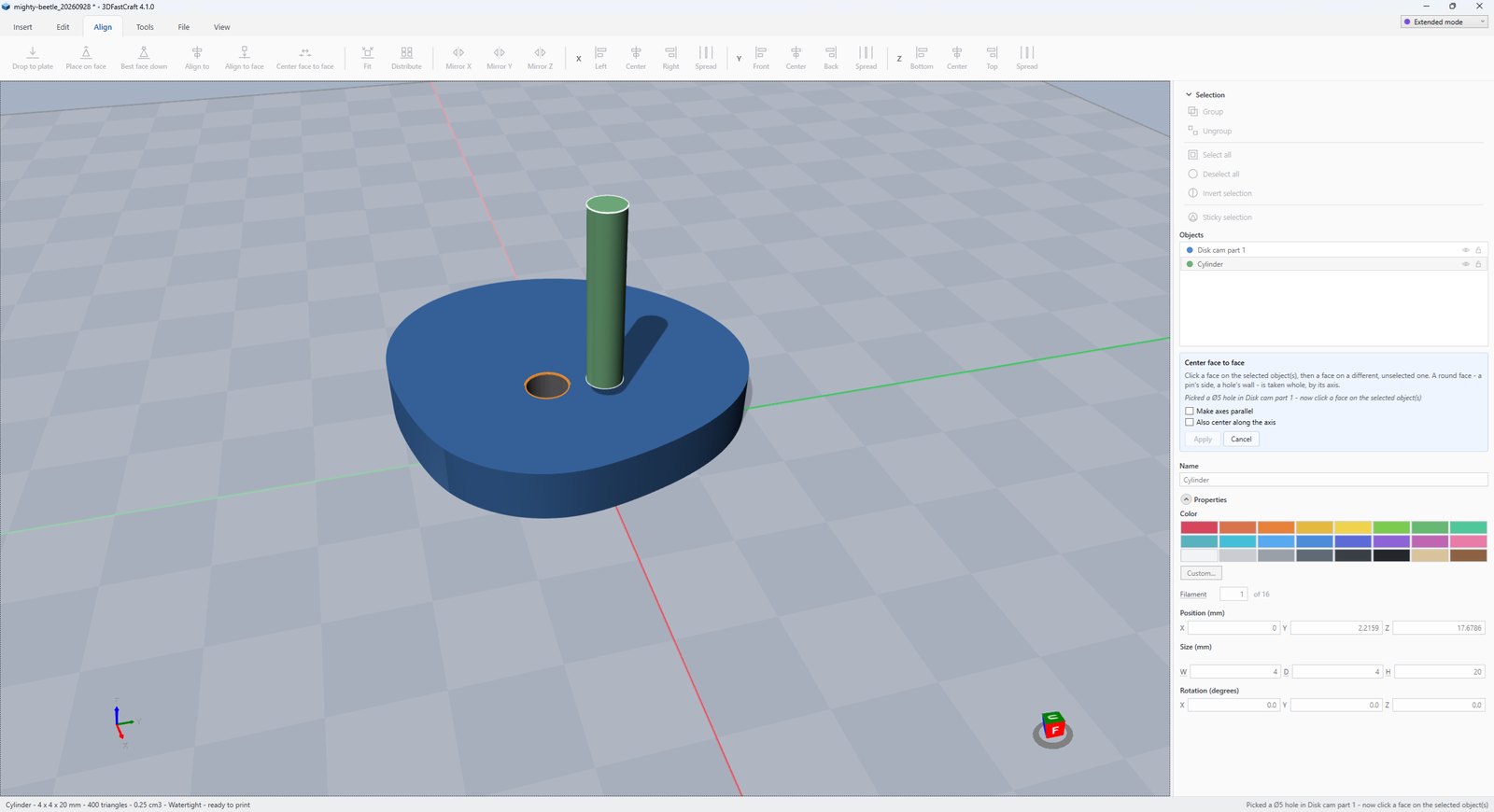
Its neighbor on the Align tab. Center face to face picks two faces, one on the selection and one on another object, and puts the middle of the first on the middle of the second. It takes round faces and flat-sided holes whole too, and it reads both sizes and the gap, so you know before you apply whether a pin will fit.
More tool guides: Cladding · 3D textures · Windows · Doors · Mold · Voronoi · Connectors · Fill up · Pivot · Download 3DFastCraft, free